More time on your jobs.
Walk the work, solve problems and keep the next start moving.
Meet your new jobsite shortcut
FunnelPhase
Less chasing. More building.
Bring your whole schedule over from your scheduling system—hundreds of items in one Excel upload. FunnelPhase organizes the jobs into a prepared text for each trade.
Walk it. Say it. Send it. Your jobsite pictures and spoken corrections become organized trade texts with the matching photos.
Your schedule. Your photos. Your time back.
Built for residential superintendents · Phone + computer · Your existing schedule · Trades can receive texts without an account
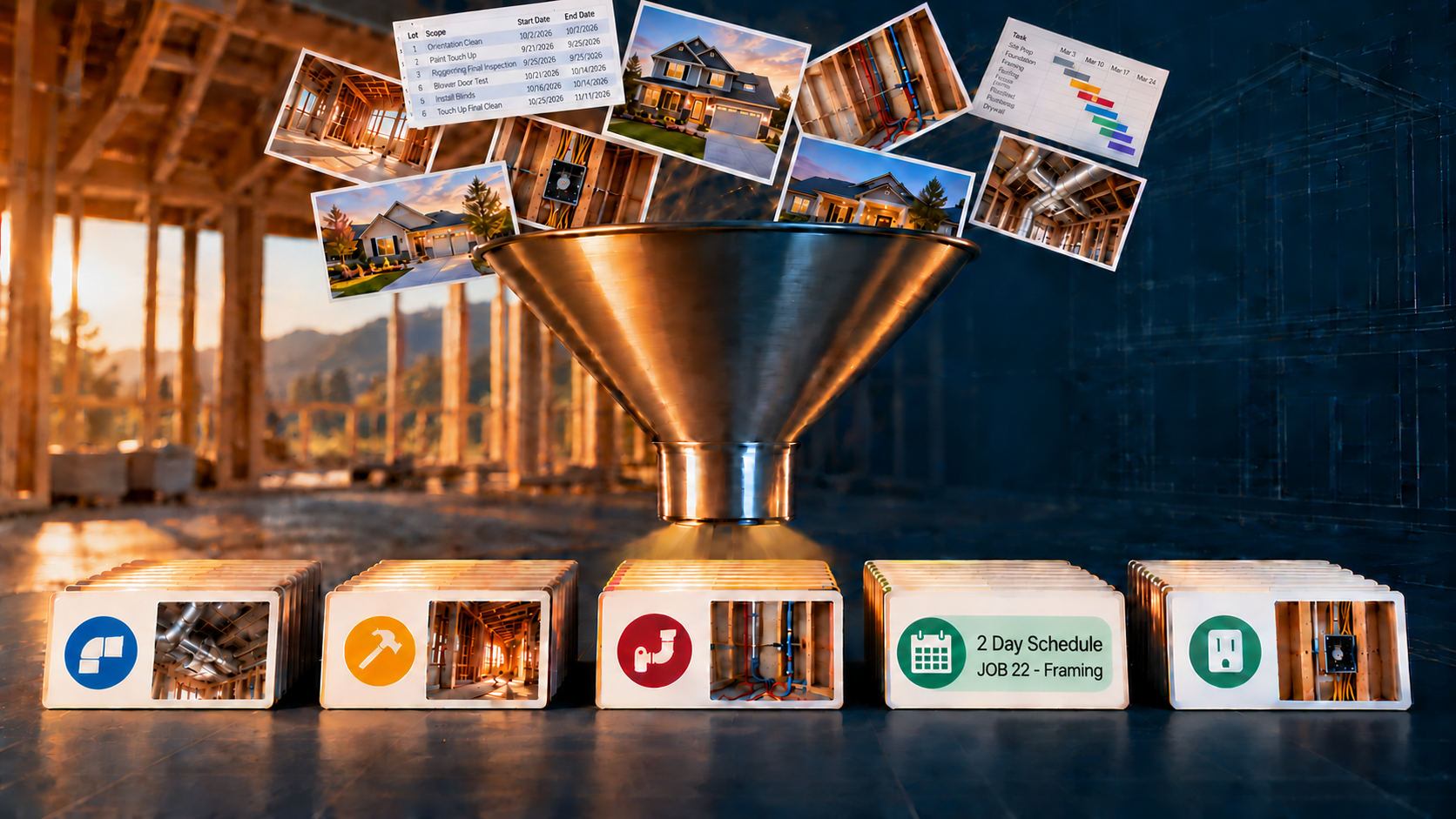
Big schedule. Simple handoff.
Bring over your complete schedule—even 300+ items together. You don’t need to sort it by job, trade or date first. Just include these four labeled fields.
All jobs.xlsx · example
| Finish | Job | Scope | Start |
|---|---|---|---|
| 10/30/26 | JOB 28 | Finish | 10/29/26 |
| 10/26/26 | JOB 5 | 4/way Clean | 10/26/26 |
| 10/29/26 | JOB 22 | Electrical | 10/28/26 |
October 2026 · rows shown out of order
Export or copy your whole schedule from your scheduling system into one Excel worksheet. Hundreds of items can come over together.
300+ schedule items
One Excel upload
Upload the Excel file or paste the whole table. Prefer schedule pictures? Upload clear screenshots or photos instead.
Prepared by trade
It matches scopes to your saved trade assignments and organizes jobs and dates. Review the import and save; each trade’s text is prepared.
Jimmy’s jobs · one text
Hi Jimmy,
JOB 5
• 4/way Clean 10/26
• Drywall Clean 10/29–30
• Carpet Prep 11/2
• Final Clean 11/6–7
• Window and Pressure Washing 11/9
• Orientation Clean 11/13
• Touch Up Clean 11/16
…all his upcoming work together.
Copy Paste Send
Choose your look-ahead window. Each trade gets one prepared text with its upcoming jobs together. Copy it into your usual messaging app and send.
Set up your jobs and trade assignments once. Keep the four column headings and dates readable; FunnelPhase handles the sorting. Schedule pictures support up to six images per batch, with a review before saving.
A bigger example · fictional jobs and dates
Early dates, later dates, different jobs and other trades—all mixed together. FunnelPhase pulls Jimmy’s work into one text, with the soonest job first and each job’s items in date order.
Before · all-jobs Excel export
48 unsorted items · mixed trades · Oct–Nov 2026
| Finish | Scope | Job | Start |
|---|---|---|---|
| 10/26/26 | 4/way Clean | JOB 5 | 10/26/26 |
| 11/9/26 | Final Clean | JOB 28 | 11/8/26 |
| 11/20/26 | Touch Up Clean | JOB 12 | 11/20/26 |
| 11/7/26 | Final Clean | JOB 5 | 11/6/26 |
| 11/18/26 | Touch Up Clean | JOB 28 | 11/18/26 |
| 11/7/26 | Carpet Prep | JOB 31 | 11/7/26 |
| 11/16/26 | Touch Up Clean | JOB 5 | 11/16/26 |
| 11/5/26 | Carpet Prep | JOB 7 | 11/5/26 |
| 11/18/26 | Orientation Clean | JOB 31 | 11/18/26 |
| 11/3/26 | Carpet Prep | JOB 22 | 11/3/26 |
| 11/16/26 | Orientation Clean | JOB 7 | 11/16/26 |
| 11/2/26 | Finish Work | JOB 22 | 10/31/26 |
| 11/14/26 | Orientation Clean | JOB 22 | 11/14/26 |
| 11/3/26 | Drywall Clean | JOB 12 | 11/2/26 |
| 11/5/26 | Rough Electrical | JOB 12 | 11/3/26 |
| 11/1/26 | Drywall Clean | JOB 28 | 10/31/26 |
| 11/13/26 | Window and Pressure Washing | JOB 12 | 11/13/26 |
| 10/30/26 | Drywall Clean | JOB 5 | 10/29/26 |
| 11/11/26 | Window and Pressure Washing | JOB 28 | 11/11/26 |
| 10/31/26 | 4/way Clean | JOB 31 | 10/31/26 |
| 11/9/26 | Window and Pressure Washing | JOB 5 | 11/9/26 |
| 10/29/26 | 4/way Clean | JOB 7 | 10/29/26 |
| 11/12/26 | Final Clean | JOB 31 | 11/11/26 |
| 10/27/26 | 4/way Clean | JOB 22 | 10/27/26 |
| 11/10/26 | Final Clean | JOB 7 | 11/9/26 |
| 11/21/26 | Touch Up Clean | JOB 31 | 11/21/26 |
| 11/8/26 | Final Clean | JOB 22 | 11/7/26 |
| 11/19/26 | Touch Up Clean | JOB 7 | 11/19/26 |
| 11/3/26 | Rough Electrical | JOB 28 | 11/1/26 |
| 11/17/26 | Touch Up Clean | JOB 22 | 11/17/26 |
| 11/6/26 | Carpet Prep | JOB 12 | 11/6/26 |
| 11/6/26 | Finish Work | JOB 31 | 11/4/26 |
| 11/4/26 | Carpet Prep | JOB 28 | 11/4/26 |
| 11/17/26 | Orientation Clean | JOB 12 | 11/17/26 |
| 11/2/26 | Carpet Prep | JOB 5 | 11/2/26 |
| 11/15/26 | Orientation Clean | JOB 28 | 11/15/26 |
| 11/4/26 | Drywall Clean | JOB 31 | 11/3/26 |
| 11/13/26 | Orientation Clean | JOB 5 | 11/13/26 |
| 11/2/26 | Drywall Clean | JOB 7 | 11/1/26 |
| 11/14/26 | Window and Pressure Washing | JOB 31 | 11/14/26 |
| 10/31/26 | Drywall Clean | JOB 22 | 10/30/26 |
| 11/12/26 | Window and Pressure Washing | JOB 7 | 11/12/26 |
| 11/1/26 | Rough Electrical | JOB 5 | 10/30/26 |
| 11/10/26 | Window and Pressure Washing | JOB 22 | 11/10/26 |
| 10/30/26 | 4/way Clean | JOB 12 | 10/30/26 |
| 11/4/26 | Finish Work | JOB 7 | 11/2/26 |
| 10/28/26 | 4/way Clean | JOB 28 | 10/28/26 |
| 11/11/26 | Final Clean | JOB 12 | 11/10/26 |
Scroll to see all 48 example rows. Keep your headings; leave the sorting to FunnelPhase.
After · one prepared text for Jimmy
42 items · 6 jobs · All work view
Hi Jimmy, All Work Schedule JOB 5 • 4/way Clean 10/26 • Drywall Clean 10/29–30 • Carpet Prep 11/2 • Final Clean 11/6–7 • Window and Pressure Washing 11/9 • Orientation Clean 11/13 • Touch Up Clean 11/16 JOB 22 • 4/way Clean 10/27 • Drywall Clean 10/30–31 • Carpet Prep 11/3 • Final Clean 11/7–8 • Window and Pressure Washing 11/10 • Orientation Clean 11/14 • Touch Up Clean 11/17 JOB 28 • 4/way Clean 10/28 • Drywall Clean 10/31–11/1 • Carpet Prep 11/4 • Final Clean 11/8–9 • Window and Pressure Washing 11/11 • Orientation Clean 11/15 • Touch Up Clean 11/18 JOB 7 • 4/way Clean 10/29 • Drywall Clean 11/1–2 • Carpet Prep 11/5 • Final Clean 11/9–10 • Window and Pressure Washing 11/12 • Orientation Clean 11/16 • Touch Up Clean 11/19 JOB 12 • 4/way Clean 10/30 • Drywall Clean 11/2–3 • Carpet Prep 11/6 • Final Clean 11/10–11 • Window and Pressure Washing 11/13 • Orientation Clean 11/17 • Touch Up Clean 11/20 JOB 31 • 4/way Clean 10/31 • Drywall Clean 11/3–4 • Carpet Prep 11/7 • Final Clean 11/11–12 • Window and Pressure Washing 11/14 • Orientation Clean 11/18 • Touch Up Clean 11/21 Please let me know if you have any questions. Thank you!
All of Jimmy’s work, job by job. The other trades get their own prepared texts.
Your starts stay on your radar
Once notifications are enabled, FunnelPhase checks the saved schedule for due one-week reminders and two-working-day confirmations. At 9 a.m. Mountain on workdays, it sends an app notification when you have texts to send.
Open today’s alerts to see the prepared trade messages together. Copy and send them without scrolling through every job to find the upcoming starts.
Enable notifications on each device. iPhone notifications use the installed Home Screen app. Reminders follow working-day and configured holiday rules.
Illustrative app notification
FunnelPhase9:00 AM
Your schedule texts are ready
Today’s 1 Week reminders and 2 Day confirmations are ready to review.
Walk the jobs. Let the funnel do the organizing.
Take the pictures in FunnelPhase and speak what needs fixing. The photos stay with the correction, job and trade in your walk. Finish uploading, then prepare one text per trade for all jobs or just one—and include the matching photos whenever you want.
Jobsite · example
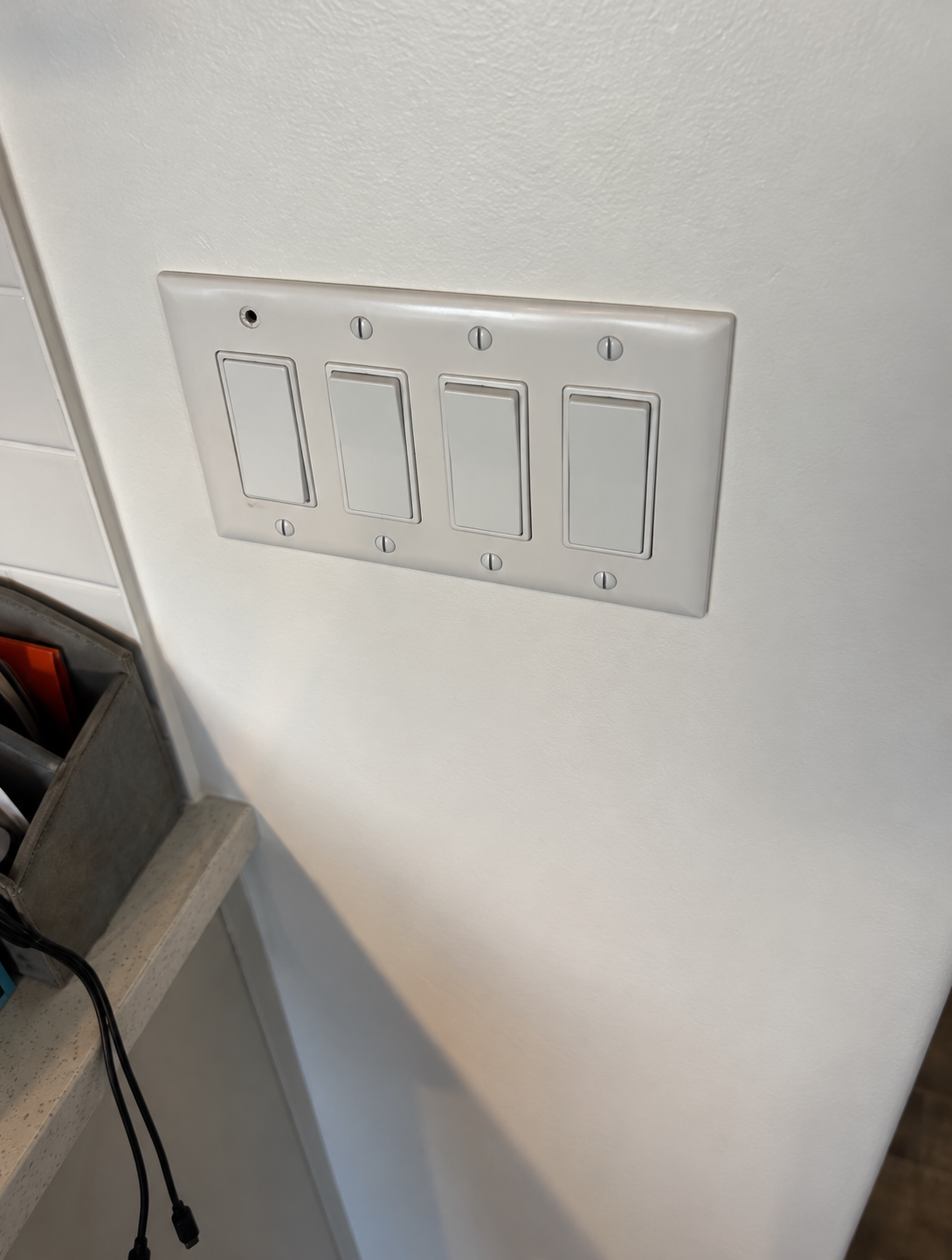
Open the photo walk on the jobsite. Take a correction photo in the app or add one from your phone.
“Job G-24. Electrical. Kitchen switch plate is missing a screw.”
Save & next
Speak the correction and its location into the app. Check the job and suggested trade, then Save & next as you keep walking.
Tap Finish inspection & save list. FunnelPhase uploads the walk and groups the corrections by job and trade, with the pictures kept together.
Electrical text + pictures · example
Hi Daffy,
G-24
1. Kitchen: replace the missing switch-plate screw.
See all (1) attached correction photos.
G-24 · Electrical
Matching photo ready to share
Choose all jobs, one job or a building. Copy each trade’s prepared message, then choose whether to share its organized photos too.
Walk it. Say it. Finish the list. Your trade texts and matching pictures are organized for sending.
Examples use fictional jobs and trades. You review and send the messages and pictures. Trade accounts are optional.
A home for every job photo
Take the picture inside FunnelPhase and keep it with the correction, job and trade as you walk. You don’t need to save and sort a pile of job photos in your phone’s photo library.
Finish inspection & save list uploads your walk into the site, already grouped for trade texts. Open the job or trade to find the right pictures and notes together.
Walk drafts are held inside the app on this device until you finish uploading. Internet is required to finish the walk.
Choose how much work to send
One organized message per trade for the jobs you choose.
Choose what you share
Prepared text on its own
Text with the matching organized photos
Copy the text; add the pictures when you want them included.
More than organized lists. Room in your day.
Sorting hundreds of schedule items. Rewriting the same trade texts. Matching correction notes to pictures. FunnelPhase brings those steps together so you can spend less time preparing the follow-up and more time moving the jobs forward.
Walk the work, solve problems and keep the next start moving.
Give trades clear jobs, dates and correction photos to work from.
Bring less list-building and message-writing into the end of your day.
One funnel. Clear trade directions. More time for what’s next.
Take a look before you sign up
Tap through fictional examples of the trade texts, schedule, calendar and photo walk. These previews show the workflow without changing any saved work.
Try a preview
Tap any button to see what FunnelPhase creates.
PREVIEW · READY TO SEND
Jobs and their items show soonest start dates first. Choose 2 Weeks, 1wk / 2d Alerts, 1 Month or All, then review, copy and send each trade’s prepared text. Jimmy’s larger example below shows All work.
Edit scope Text names in Setup, add a note to every text today, and link dated same-job follow-ups—even under another manager. Phones show about three managers at a time.
Edit scope wording and add a note to every text today
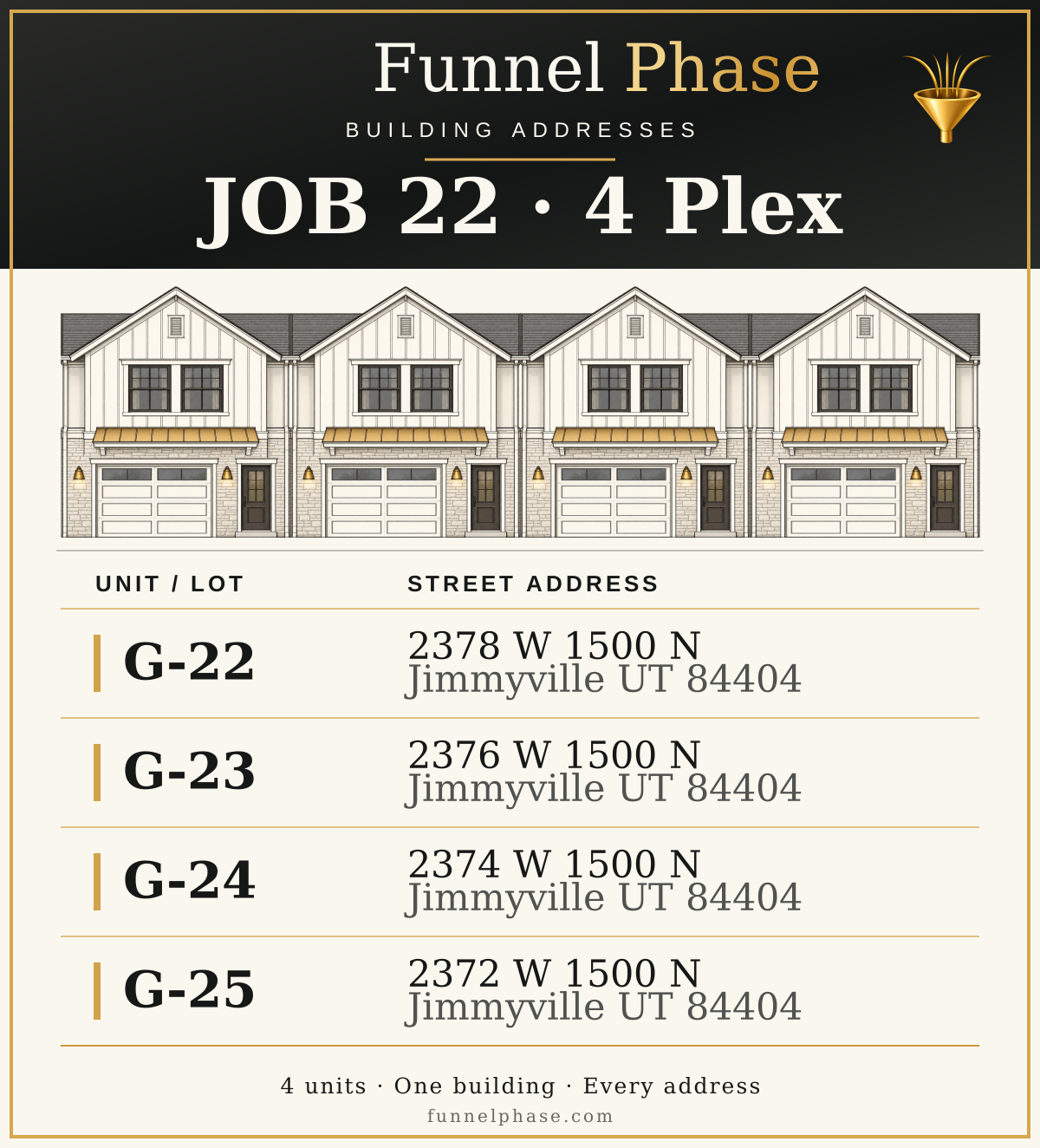
Send them to the right door
Working on a four-plex or eight-plex? Put the building and its saved unit addresses in one shareable picture. Send it with the work so a lot number has an address to go with it.
Fictional JOB 22 example shown. Single-family and townhome job types are also supported.
Make an address pictureStart with the work you already have
STEP 1
Guided setup walks you through the basics and remembers your progress.
STEP 2
Review the dates and assignments, or capture your first correction list.
STEP 3
Use the prepared messages with the phone and messaging app you already use.
Try it on a real workday
Free during testing and feedback. No payment details, automatic charges or trial deadline. Create your account; access is approved by the Administrator and your workspace stays separate from everyone else’s.
Create my accountUse the same account on phone and computer. Internet is required. You review and send the texts; automatic delivery is not active.
No. Export or copy all your jobs into one Excel worksheet, including 300+ schedule items. Include the four labeled fields: Job (or Lot), Scope, Start and Finish. The columns and rows can be in any order. Upload or paste the whole table, review and save. You can also upload up to six readable schedule pictures per batch.
Set up your scopes and trade contacts once. Matching scope names in later imports use those saved assignments. Check any new or unassigned scope during review; FunnelPhase prepares the text for each assigned trade.
No. You can send the prepared texts and photos through your usual messaging or email app. Optional trade accounts let trades view their assigned corrections and submit completion notes or fixed photos for your review.
Enable notifications on your device. At 9 a.m. Mountain on working days, the app notifies you when your saved schedule has due one-week or two-working-day messages. Open today’s alerts, copy each trade’s text and send it. iPhone notifications require the installed Home Screen app. Weekends and configured holidays are skipped.
No. Take photos inside FunnelPhase and keep them with the correction, job and trade as you walk. Finish inspection & save list uploads the walk into the site. Choose all jobs, one job or a whole building for the prepared trade texts. Copy the text alone or share its matching organized photos too. Walk drafts stay inside the app on that device until uploaded; internet is required to finish.
FunnelPhase prepares the messages. You review, copy and send them. Automatic text and email delivery is not active.
Yes. Both use the same account and online workspace. You can add FunnelPhase to your phone’s Home Screen. Internet is required; offline access is not included. Saved Voice Walk drafts stay on the device where you made them until uploaded; reconnect before finishing the inspection.